
Responding to SMS
Messages in HubSpot
When a contact replies to an SMS, our workflow assigns the conversation to the salesperson responsible for that contact and sends an email notification. Open HubSpot to read the conversation and respond.
Your quick reference
The email is your alert. Send your text response from the SMS conversation in HubSpot.
Watch for your email notification
When one of your contacts replies by SMS, you will receive an internal email notification.
- Review the notification to identify the contact.
- Open HubSpot and make sure you are in the eQ Homes account.
- Follow the steps below to locate the conversation.
Open the HubSpot Inbox
- In the left navigation, click CRM.
- Select Inbox.
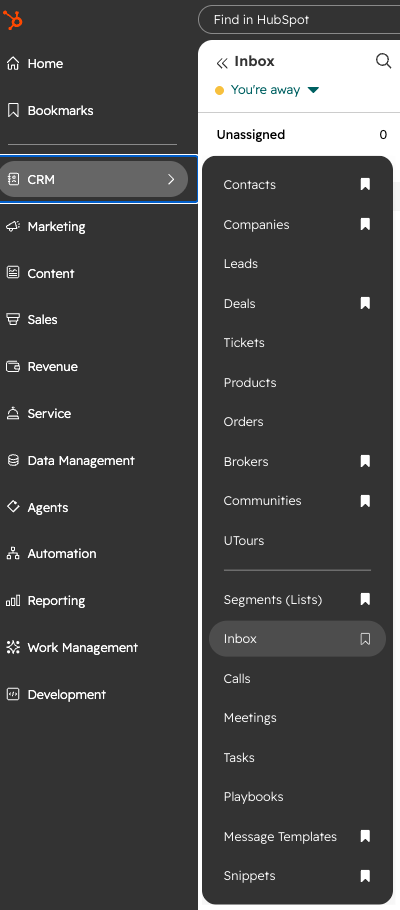
Find your assigned conversations
- In the Inbox’s left panel, select Assigned to me.
- Find the contact named in your notification.
- Click the conversation to open it.
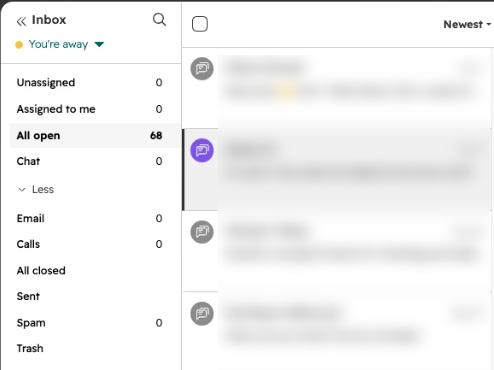
Start here to find conversations assigned to you.
Use this to help locate an open conversation if you have access.
Check here if the conversation may already have been closed.
Conversations without an assigned owner. Flag these to your manager or CRM administrator when relevant.
If your Inbox opens in All open, select Assigned to me before looking for your contact.
Read the message and check the owner
- Confirm that you have opened the correct contact.
- Read the latest incoming message and the earlier conversation.
- Review the Owner shown at the top.
- Check whether another teammate has already responded.
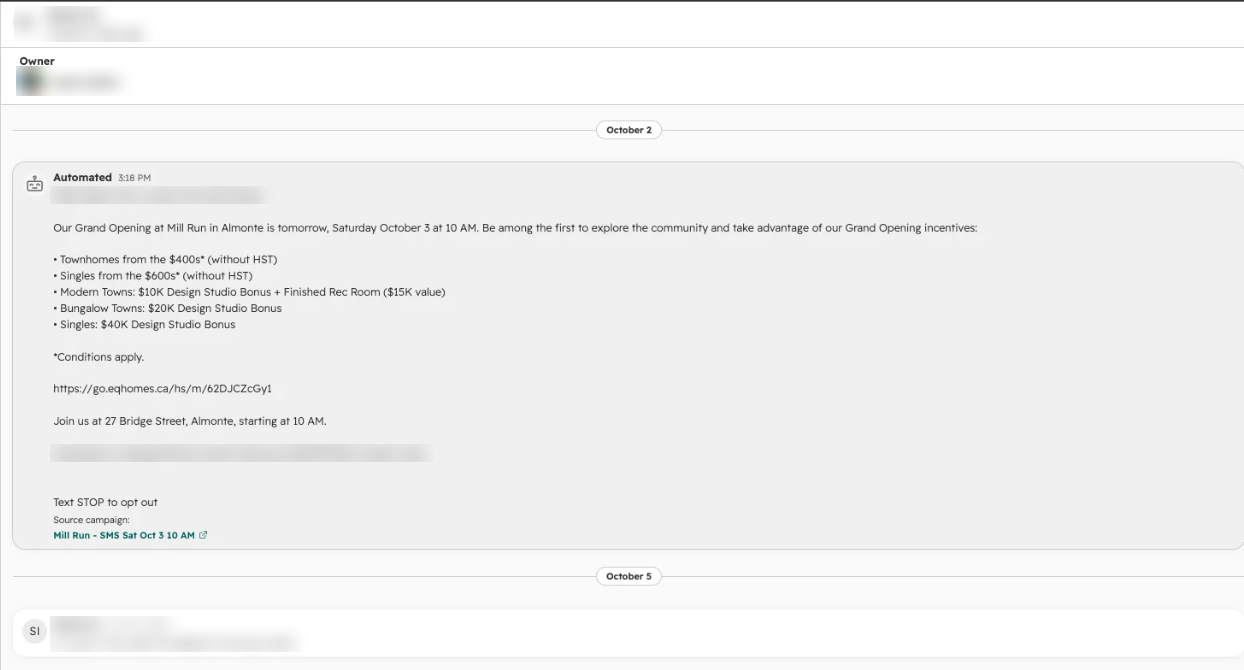
Some replies may be reactions, such as a thumbs-up, rather than a new question. Read the conversation before deciding what response is needed.
If the owner appears incorrect, ask your manager or CRM administrator to review the assignment.
Send your SMS response
- Go to the message composer at the bottom of the conversation.
- Select SMS.
- Type your response.
- Check the recipient, wording, and any details you are sharing.
- Use the Send control.
- Confirm your message appears in the conversation and check for any error.

SMS sends a text to the contact. Comment adds an internal note and does not send an SMS.
Record the next step
After responding:
- Create a follow-up task if you owe the contact information or need to follow up later.
- Update relevant contact details when the conversation provides new information.
- Leave the conversation open when action is still needed.
- Close the conversation once the exchange is complete and no immediate action remains.
Make it a daily habit
Check Assigned to me at the start of your workday, periodically during the day, and before signing off. Email notifications are helpful, but check the inbox directly, too.
When something isn’t quite right
Troubleshooting
I received an email but cannot find the message.
Confirm you are in the eQ Homes account and the appropriate inbox, if more than one is available. Refresh, check Assigned to me, then use inbox search or review All open and All closed where permitted.
Assigned to me shows zero.
This means this view currently contains no matching conversations. If you received an alert, confirm the eQ Homes account and appropriate inbox, refresh, and check inbox search, All open and All closed where permitted.
The conversation is assigned to someone else.
Ask your manager or CRM administrator to review the contact owner and conversation assignment before taking over.
I cannot see Inbox or the SMS option.
Ask your CRM administrator to check your access and the SMS channel.
My message did not send.
Review the displayed error and contact your CRM administrator if needed. Do not assume the message was delivered.
The contact asks us to stop texting.
Stop promotional follow-up and notify your manager or CRM administrator so the contact’s SMS subscription status can be checked.
How assignment works
Our HubSpot workflow, “SMS Replies | Assign to Contact Owner | V2,” routes incoming SMS conversations to the contact’s owner and sends that salesperson an internal email notification.
You don’t need to edit or access workflows to reply to a contact.